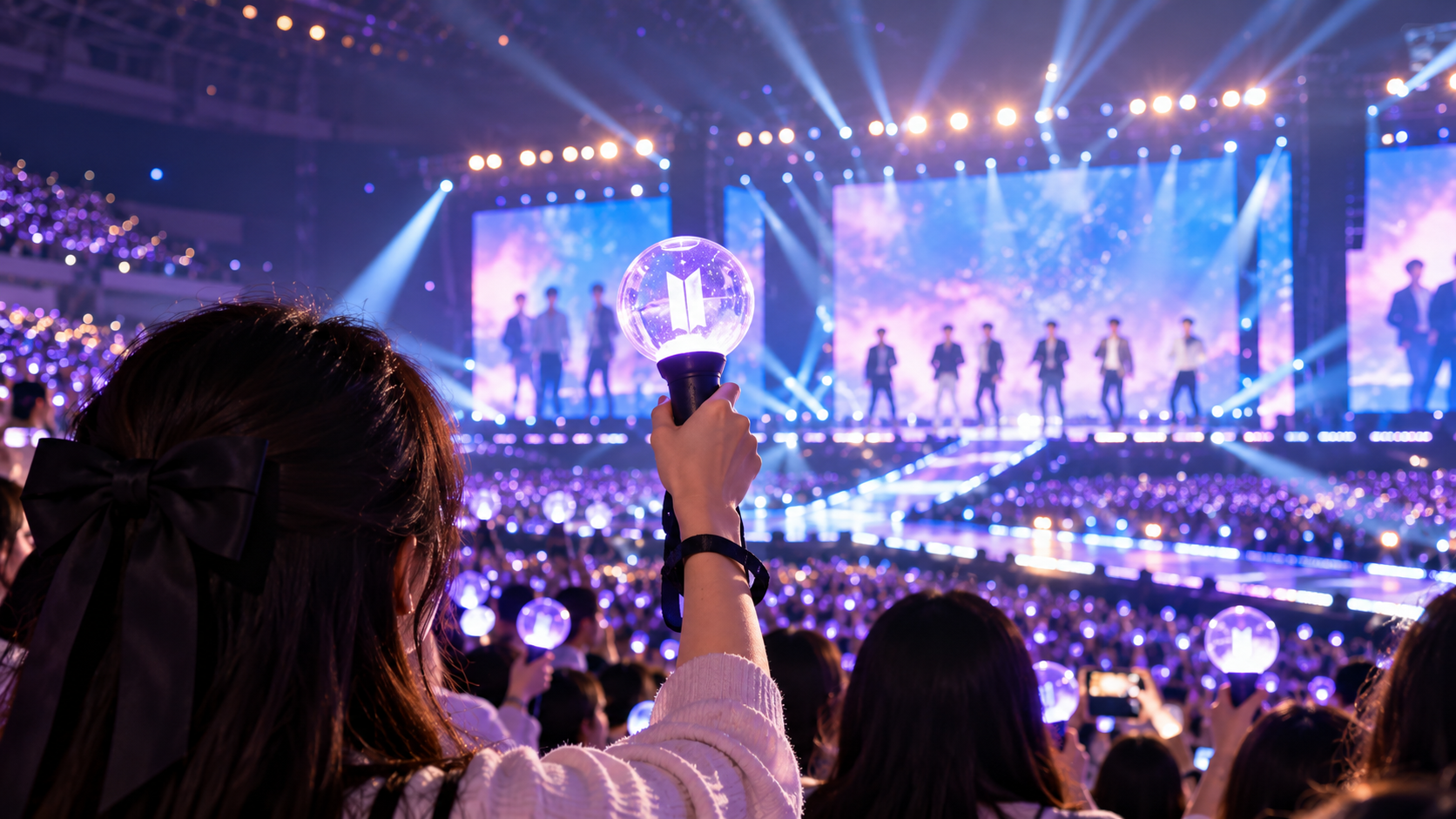
Your official K-pop lightstick turns on, but it will not connect to the app. Or perhaps Bluetooth works, yet your concert seat will not register. Does that mean your lightstick is broken?
Not necessarily.
In 2026, K-pop concert lightstick problems can have several different causes: an unsupported model, outdated firmware, weak batteries, incorrect seat information, or a misunderstanding of how a particular concert controls its audience lighting.
The most important thing to know is that not every K-pop concert uses the same pairing system.
Some performances require fans to register their seats through an official app. Others synchronize supported lightsticks automatically inside the venue. Certain older lightstick versions can illuminate normally but cannot participate in the synchronized concert effects.
This guide explains how to identify the problem, what to check before leaving home, and what to do if your lightstick stops working at the venue.
Last reviewed: October 2026. Lightstick compatibility and concert-mode instructions are event-specific. Always follow the latest notice from your artist, promoter, or official lightstick app.
Quick Answer: Why Is My K-Pop Lightstick Not Connecting?
Start by identifying what is actually failing.
| Problem | Possible cause | First thing to check |
|---|---|---|
| Lightstick will not turn on | Battery or power issue | Battery type, orientation and contacts |
| Lightstick turns on but app cannot find it | Bluetooth mode, permissions or app issue | Official pairing instructions |
| Bluetooth connects but seat registration fails | Incorrect seat details or unavailable registration window | Event-specific concert notice |
| Lightstick works but does not change colors with the audience | Unsupported version or incomplete concert setup | Supported model list |
| Lightstick disconnects during an update | Power or connection interruption | Battery condition and official recovery instructions |
| Lightstick works at home but not inside the venue | Concert-mode requirements or event compatibility | On-site pairing support |
| Lightstick works at one concert but not another | Different concert systems or rules | Current event’s official guide |
A lightstick that does not synchronize is not automatically defective.
Before buying a replacement, check whether the concert supports your exact model.
1. Understand the Three Different Types of Lightstick Connection
One reason fans become confused is that the word pairing can describe different processes.
Bluetooth connection to your phone
Many official lightsticks use Bluetooth to communicate with a dedicated smartphone application.
This connection may allow you to:
- Check the device’s status
- Update its firmware
- Adjust supported settings
- Access concert-specific functions
However, connecting your lightstick to your phone does not necessarily mean it has been registered for a concert.
Seat registration through Concert Mode
Some performances require fans to enter the concert date and their exact seat information in the official app.
The system can then associate a supported lightstick with a particular location in the audience.
This allows the lighting production to create coordinated patterns across sections of the venue.
For example, official 2026 notices for TOMORROW X TOGETHER and TWS instructed fans to use the Concert Mode feature of their respective lightstick applications.
Automatic synchronization inside the venue
Other events use a different approach.
For the 2026 Weverse Con Festival, the official notice stated that supported lightsticks did not require separate app-based seat pairing. Fans were instructed to switch on their lightsticks inside the venue to participate in the supported lighting effects.
This distinction matters enormously.
Do not search endlessly for a seat-registration button if your event does not require seat registration.
Conversely, do not assume that turning on your lightstick is enough when your concert specifically requires advance pairing.
2. Before Troubleshooting, Check Your Exact Lightstick Version
An official lightstick is not necessarily compatible with every concert by the same artist.
Groups may release several generations of lightsticks.
Although older versions may still function as handheld lights, their wireless concert-control capabilities can differ.
Example: TXT’s 2026 concert guidance
The official 2026 TXT MOA CON guide instructed fans to use the TXT Official Light Stick Ver.2 application and complete a firmware update and seat pairing.
It also stated that TXT Official Light Stick Ver.1 did not support the wireless-controlled performance.
Example: SEVENTEEN’s concert compatibility
Official SEVENTEEN concert notices have similarly distinguished between supported Ver.3 models and earlier generations that do not support the event’s wireless effects.
The practical lesson is simple:
The group name alone is not enough. You need the exact lightstick model and version.
How to check compatibility
Before purchasing or troubleshooting, find:
- Your artist’s official concert notice
- The exact lightstick model listed as supported
- Any firmware requirements
- Whether the concert uses seat registration
- Whether the venue provides pairing or repair assistance
Do not rely solely on an older fan tutorial or an online seller’s compatibility claim.
For an introduction to official lightsticks and their cultural significance, read our guide: What Is a K-Pop Lightstick? Why Every Fandom Has Its Own Design.
3. Fix a Lightstick That Will Not Connect to Bluetooth
If the device powers on but the official app cannot detect it, work through the following checks.
Step 1: Confirm that you installed the correct app
Some artists have dedicated applications for specific lightstick models.
An older app may not support a newer device, and a similarly named third-party app may not be appropriate.
Use the app linked by the artist’s official announcement or official product instructions.
Step 2: Check your phone’s Bluetooth settings
Make sure Bluetooth is enabled.
Also check whether the official application has the permissions required by your phone’s operating system.
Depending on the device and operating system, these permissions can affect Bluetooth discovery.
Step 3: Enter the correct lightstick connection mode
Some models require a particular button sequence to enter Bluetooth mode.
For example, an official CLOSE YOUR EYES concert guide described a process involving a double-click of the power button before connecting through the group’s app.
That does not mean the same sequence works for every lightstick.
Follow the instructions for your exact model rather than experimenting with random button combinations.
Step 4: Move away from other active Bluetooth devices
If the app is having trouble discovering your lightstick, try the connection in a less crowded environment.
Temporarily reducing nearby device interference may help isolate the problem, although it is not a guaranteed fix.
Step 5: Restart the app and retry
Close and reopen the official app.
If necessary, restart your phone and follow the lightstick’s documented connection procedure again.
Avoid resetting or reinstalling firmware unless the manufacturer specifically instructs you to do so.
Step 6: Check for firmware updates
Some concerts require updated firmware for synchronized effects.
Complete any official update before arriving at a crowded venue.
Do not interrupt a firmware update intentionally or remove batteries while an update is in progress.
If the update fails, use the official recovery procedure or contact authorized support.
4. What If Bluetooth Works but Concert Mode Does Not?
This is a different problem.
Your phone may communicate with the lightstick correctly while the concert registration remains incomplete.
Check these possibilities.
The registration window has not opened
Some organizers allow seat registration only during a specified period before the concert.
For example, official SEVENTEEN notices have published different registration opening times for different performance dates.
If the feature is unavailable several days before your show, the registration period may simply not have started.
You selected the wrong performance date
Multi-day concerts may require separate registration for each show.
Choose the exact date shown on your ticket.
Your seat information is incorrect
Check the ticket carefully.
You may need to enter:
- Section or block
- Row
- Seat number
- Performance date
Use the official app’s required format.
Do not assume that seat information can be entered in the same way for every venue.
Your ticket or seat has changed
If your seat was reassigned or you received a replacement ticket, follow the organizer’s instructions for updating the registration.
Do not assume the old seat information will automatically change.
The concert does not use app-based seat registration
This possibility is easy to overlook.
For some events, supported lightsticks synchronize automatically inside the venue.
Always check the event notice before treating a missing Concert Mode option as an error.
5. Battery Problems: Why a Lightstick Can Turn On but Still Fail
A lightstick may illuminate briefly even when its batteries are no longer reliable enough for normal operation.
Official concert notices repeatedly warn that low batteries can cause weak illumination or interrupt synchronized effects.
Use the battery type specified for your model
Several official lightsticks use three AAA alkaline batteries.
However, this is not a universal specification.
Check your product manual before buying replacements.
Some devices use different power arrangements.
Replace old batteries before the show
If your model uses replaceable batteries, bring fresh batteries of the recommended type.
Avoid mixing old and new batteries.
Check that each battery is inserted in the correct direction.
Bring spares when permitted
Spare batteries can be useful during a long concert day.
Check the venue’s rules and carry batteries safely to prevent short circuits.
If the lightstick suddenly switches off
Try this sequence:
- Confirm that the battery compartment is securely closed.
- Check whether the batteries are depleted.
- Replace them according to the official instructions.
- Turn the device on again.
- Recheck concert synchronization if required.
Some models retain concert registration after a battery replacement, but do not assume this applies to every lightstick.
The official SEVENTEEN guidance for certain performances has specifically addressed how pairing behaves when batteries are replaced.
6. Why Does My Lightstick Work at Home but Not at the Concert?
This can happen even when the hardware is functioning.
There are several possible explanations.
The lightstick is an unsupported version
Your device may still turn on but lack the wireless-control compatibility required for that performance.
The seat registration was not completed
If the event requires advance seat pairing, ordinary Bluetooth connectivity is not sufficient.
The event uses automatic venue synchronization
Your lightstick may behave differently once the concert’s wireless-control system is active.
The device needs a firmware update
Some concert organizers identify specific models that must be updated before the show.
The venue has a temporary technical issue
If your model is supported and your setup appears correct, seek assistance from official staff rather than assuming the device is broken.
Important: Wireless concert lighting is controlled by the event’s production system. You cannot guarantee compatibility merely by changing the lightstick’s ordinary color settings.
7. The 2026 Concert Examples That Explain Why One Tutorial Cannot Fit Every Group
Official notices provide useful real-world examples.
| Concert or event | Published setup approach | Important distinction |
|---|---|---|
| 2026 TXT MOA CON | Official app, firmware update and seat pairing | Ver.1 excluded from wireless effects |
| 2026 TWS TOUR in Seoul | Official app Concert Mode and seat pairing | Advance pairing recommended |
| 2026 Weverse Con Festival | Supported devices synchronized inside venue | Separate app seat pairing not required |
| 2026 SEVENTEEN encore performances | Supported Ver.3 devices and event-specific pairing guidance | Earlier versions excluded from wireless control |
| 2026 LE SSERAFIM Japan performances | Official app and seat registration | Registration timing varied by performance |
These are examples from specific events, not permanent rules for every future concert by those artists.
A later tour may use different instructions.
Always treat the latest notice for your particular show as the final authority.
8. What to Do the Day Before Your Concert
A few minutes of preparation can prevent an unnecessarily stressful arrival.
Your pre-concert checklist
- Confirm the exact supported lightstick version.
- Read the latest official concert notice.
- Install or update the correct official app.
- Complete any required firmware update.
- Check whether seat registration is required.
- Enter the correct concert date and seat details when registration is available.
- Test the device’s basic power function.
- Prepare fresh batteries of the specified type.
- Save your ticket and the relevant concert instructions.
- Find out whether the venue offers a lightstick support booth.
Do not wait until you are standing in a crowded entrance queue to perform a major firmware update.
Official organizers have warned that congestion and unstable connectivity can make on-site setup difficult.
9. What to Do If Your Lightstick Stops Working at the Venue
First, identify whether the issue is basic power, app connection, seat registration, or synchronized lighting.
If it will not turn on
Check the batteries and compartment.
If the problem persists, ask whether an authorized support booth is available.
If it will not pair with your seat
Recheck the performance date and seat information.
Follow the official concert-mode procedure.
If the app still fails, visit the pairing support booth where available.
If it is not changing colors with the audience
Do not immediately reset the device.
Check whether your model is supported and whether the event requires seat registration or automatic synchronization.
If you need help
Some concerts operate official pairing, firmware-update, or repair booths.
For example, SEVENTEEN’s 2026 encore concert notices described dedicated on-site pairing assistance.
But booth availability, hours, and services vary by event.
Check your concert’s official information rather than assuming support will be available.
What if the problem cannot be fixed?
You can still enjoy the concert.
A malfunctioning or incompatible lightstick should not prevent you from participating in the music, singing, and atmosphere.
Follow venue rules about lighting devices, and do not use unsupported lights where they are prohibited.
10. Should You Buy a New Lightstick Just for Concert Synchronization?
Not automatically.
Before purchasing, consider three questions.
Is your current version supported?
If yes, troubleshooting may be more sensible than replacement.
Does the new model support your upcoming concert?
Verify this through the current event notice.
A newer-looking model is not enough evidence.
How often will you use it?
If you attend concerts regularly, the ability to participate in synchronized lighting may matter more to you.
If you are attending only one performance, consider the purchase cost in relation to your budget and priorities.
A lightstick is also a collectible expression of fandom, not merely a technical accessory.
There is no requirement to buy every new generation to be a meaningful fan.
11. Avoid These Common Lightstick Mistakes
Mistake 1: Assuming Bluetooth connection means seat registration is complete
These can be separate steps.
Mistake 2: Following instructions for a different lightstick generation
Button sequences, applications, and compatibility can change.
Mistake 3: Buying an unofficial device and expecting guaranteed concert synchronization
Only rely on officially documented compatibility.
Mistake 4: Using depleted batteries
Weak batteries can interrupt normal operation and wireless effects.
Mistake 5: Updating firmware for the first time in a crowded venue
Complete required updates in advance whenever possible.
Mistake 6: Registering the wrong seat or concert date
Check your ticket carefully.
Mistake 7: Assuming every event requires manual pairing
Some concerts use automatic synchronization.
Mistake 8: Buying a replacement without checking compatibility
A supported model with a simple setup problem may not need replacing.
12. How Concert Lightsticks Became Part of K-Pop Performance Culture
Modern lightsticks are more than merchandise.
They turn the audience into a visible part of the concert’s stage design.
When thousands of supported devices change colors together, the crowd becomes a coordinated visual environment.
This helps explain why pairing and wireless control matter to fans.
The technology connects individual participation with a collective performance.
But the emotional significance of a lightstick goes beyond technical synchronization.
For many fans, carrying an official lightstick symbolizes their relationship with an artist and a wider community.
That meaning remains even when a device cannot participate in every lighting effect.
To understand how those communities develop their shared identity, explore What Does “Fandom” Mean in K-Pop?.
Frequently Asked Questions
Why is my K-pop lightstick not connecting to my phone?
Possible causes include an incorrect official app, disabled Bluetooth, missing permissions, an incorrect connection mode, or outdated firmware. Follow the instructions for your exact lightstick model.
Do all K-pop concerts require seat pairing?
No. Some require app-based seat registration, while others automatically synchronize supported lightsticks inside the venue.
Can an old official lightstick still work at a concert?
It may still illuminate normally, but wireless concert synchronization depends on the exact version and event. Check the supported-model list.
Why does my lightstick connect through Bluetooth but not Concert Mode?
The registration period may not be open, the seat information may be incorrect, or the event may use a different setup system.
Do I need Wi-Fi during the concert?
Requirements depend on the app and event. Complete updates and required registration in advance when instructed. Do not assume that every venue offers reliable connectivity.
Can I change batteries after pairing?
Some official systems retain registration after battery replacement. Check your model’s event-specific instructions rather than assuming this applies universally.
Can I use another group’s lightstick at a concert?
Venue rules and wireless compatibility vary. Some events restrict unsupported lighting devices. Check the concert policy before bringing one.
What if my lightstick is not changing colors with everyone else’s?
Check compatibility, concert-mode requirements, battery condition, and official venue instructions. Seek on-site support if available.
Should I buy a new lightstick before every tour?
No. First verify whether your existing version supports the upcoming concert and whether any required firmware updates are available.
What should I do if pairing fails at the venue?
Use the official pairing or service booth if the organizer provides one. Avoid unapproved firmware procedures or random resets.
Final Thoughts: Check the Concert, Not Just the Lightstick
A K-pop lightstick that will not connect is frustrating, especially when you have traveled a long way to see your favorite artist.
But the solution often begins with one simple question:
What does the official notice for this exact concert require?
Check your lightstick version, use the correct app, confirm the registration method, update firmware when instructed, and prepare suitable batteries.
Above all, remember that different concerts use different synchronization systems.
The best troubleshooting guide is not a universal button sequence. It is a clear process for identifying the correct requirements before you arrive.
And even if your lightstick refuses to cooperate, the music and the experience of sharing it with other fans remain the heart of the concert.
Official Sources and Further Reading
- TXT — 2026 MOA CON Official Light Stick User Guide
- TWS — 2026 Tour Official Light Stick User Guide
- 2026 Weverse Con Festival — Official Lightstick Information
- SEVENTEEN — 2026 Encore Concert Merchandise and Pairing Information
- CLOSE YOUR EYES — Official Light Stick Sync Guide
- LE SSERAFIM — 2026 Japan Concert Pairing and Seat Registration Notice
Editorial disclosure: This article is an independent informational guide based on published official instructions. It is not affiliated with any artist, entertainment company, or concert organizer. Specific concert requirements may change.
Leave a Reply